Smartphone and laptop guidesComponents
Speed up a PC: SSD and RAM upgrades
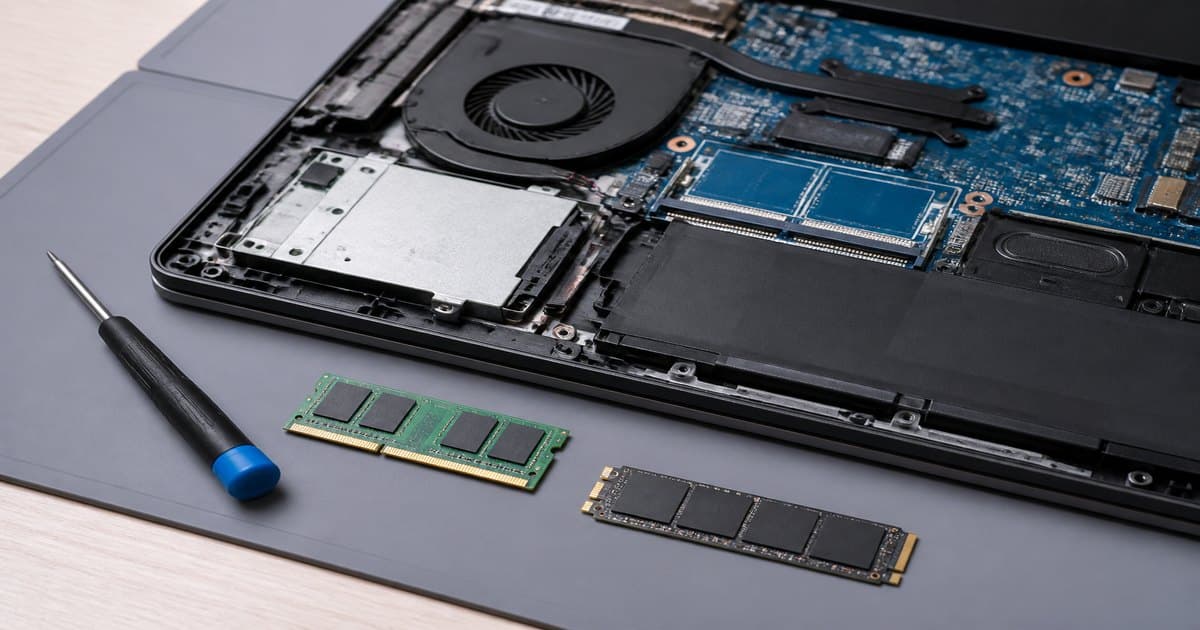
“My PC is slow” is usually HDD, a full disk, or too little RAM. Check SSD, M.2 NVMe, and RAM before buying a new machine.
SSD: SATA or NVMe?
HDD to SATA SSD is already night and day. NVMe wins large files and game loads. One M.2 slot in a laptop: go NVMe. Desktops can mix NVMe for the OS and SATA for archive.
- 256 GB fills fast (OS + apps).
- 512 GB is a comfortable daily floor.
- 1 TB for games and photo/video.
RAM: DDR4 and DDR5 do not mix
The motherboard decides. See DDR4 vs DDR5. 8 GB is tight in 2026; 16 GB is the office/study zone; 32 GB for heavy multitasking. Two matched sticks beat one big stick (dual channel).
Clone, backup, migrate
- Copy files to an external SSD first.
- Disk clone keeps Windows as-is; clean install is tidier but slower.
- Keep the old HDD as extra storage — not the only copy.
Gaming vs office upgrades
Games: 16→32 GB RAM and 1 TB NVMe often cut stutter more than a tiny GPU bump. Office mini PCs: 16 GB + 512 GB is often enough. Building a gaming rig? Read PC vs laptop.
Confirm the slot (M.2 size, DDR generation) before capacity. Wrong-generation RAM stays in the box.
Will NVMe overheat a thin laptop?
Cheap DRAM-less drives can run hot. A decent SSD plus the stock heatsink is usually enough.
Does 16→32 GB speed up Office?
If you live in 20 Chrome tabs, yes. Word plus three tabs: spend on SSD instead.
Can I install it myself?
M.2 is one screw if you are careful. If opening the laptop voids warranty, use a service desk.